Sagemath won’t run in Linux (No module named ‘sage.repl’)

TLDR: Change #!/usr/bin/env python to #!/usr/bin/env python2 in the file /usr/share/sagemath/bin/sage-ipython

This error happens because the Python environment where Sage is running is set up to use a Python version other than Python 2.7.

If sagemath is installed using the Ubuntu repository (sudo apt-get sagemath) then it will install sagemath under python2.7. We can verify this from the Ubuntu repo

https://packages.ubuntu.com/bionic/amd64/sagemath/filelist

Or if we have already installed sagemath, by going to /usr/lib/python2.7/dist-packages/sage. So trying to run sage from a terminal will only give an error.

$ sage
Traceback (most recent call last):
File "/usr/share/sagemath/bin/sage-ipython", line 7, in
from sage.repl.interpreter import SageTerminalApp
ModuleNotFoundError: No module named 'sage.repl'

This is because sage is trying to run under a python version different than python2.7. We can verify this is the case.

$ which python
/usr/bin/python
$ ls -l /usr/bin/python
lrwxrwxrwx 1 root root 16 Mar 23 12:14 /usr/bin/python -> /usr/bin/python3

So the python environment is python3.6 and not python 2.7 (as required by sage). Sage doesn’t automatically select the right python version.

root@parton:/usr/share/sagemath/bin# cat sage-ipython 
#!/usr/bin/env python
# -*- coding: utf-8 -*-
"""
Sage IPython startup script.
"""

from sage.repl.interpreter import SageTerminalApp

app = SageTerminalApp.instance()
app.initialize()
app.start()

So sage is running ipython with the env set to find python. The env selects python which points to /usr/bin/python3.6. We can see what the current env will select.

$ type -a python
python is /usr/bin/python                   (<- python 3.6)
python is /home/jones/anaconda3/bin/python  (<- python 3.5)

For users running python3.5 with anaconda3 but having python2.7 installed system-wide, temporarily renaming anaconda3 or changing the $PATH variable to move anaconda3 to the end seems to works. I had no success with this and the reason is clear. When anaconda3 is removed from $PATH, the OS python env takes over which is python 3.6. So unless the OS environment is also python2.7, removing anacona3 will not solve the problem of sagemath not running.

There are two options available.

  1. Create a new virtual environment with vitrualenv and install python2.7 and sagemath in that environment. This will turn out to be too much work and takes up lot of space.
  2. Modify the sage-ipython file to use python2.7

We will modify /usr/share/sagemath/bin/sage-ipython

$ su
$ cd /usr/bin/
$ ls -l python*

Check the python link that points python2.7

lrwxrwxrwx 1 root root 9 Apr 16 2018 python2 -> python2.7

If there is none pointing to python2.7 then create a link

$ ln -s /usr/bin/python2.7 python2

Now let’s modify the sage-ipython file

$ cd /usr/share/sagemath/bin
$ gedit sage-ipython

Change #!/usr/bin/env python to #!/usr/bin/env python2

Save, log out of root, and run sage as a normal user. Sage should work now.

Sagemath jupyter server is crashing

Sagemath Jupyter GUI server crash is fixed by editing
/usr/share/jupyter/kernels/sagemath/kernel.json. See the post Jupyter notebook running the wrong python version.

/usr/share/jupyter/kernels/sagemath had the following kernel declaration for jupyter that was causing the kernel to crash.

{
"display_name": "SageMath 8.1", 
"argv": [
 "/usr/bin/sage",
 "--python",
 "-m",
 "sage.repl.ipython_kernel",
 "-f",
 "{connection_file}"
]
}

When the python was replaced with python2 it started working.

{
"display_name": "SageMath 8.1", 
"argv": [
 "/usr/bin/sage",
 "--python2",
 "-m",
 "sage.repl.ipython_kernel",
 "-f",
 "{connection_file}"
]
}

For Sagemath installed from source this will never happen. However, if Sagemath was installed from the repositories (sudo apt install sagemath sagemath-common) then this error is inevitable due to the dependency of sagemath python 2.

Convert all data in a table to a numeric data type in R

When tables are imported from CSV files they are usually imported as data.frames and the values are characters and not numeric. Hence it is impossible to use the table unless the data is converted to a numeric data type.

The conversion of a single variable to the numeric data type in R involves passing the variable to the function as.numeric(). 

var_in_numeric_dtype = as.numeric(var_in_char_dtype)


For tables (matrices), the as.numeric() function has to be recursively applied using the apply() function (I seem to have more control with apply() than sapply()).

> alg2 = apply(alg[,c(1:4)],c(1,2),as.numeric)
            Mean grade   Std Total students # of fails
X2016S1          77.00 14.00              5          1
X2016S2          74.00 14.00             11          3
X2016S3          85.00 12.00             20          1
X2017S1          72.00 21.00             22          5
X2017S2          57.45 38.28              7          3
X2018S1          73.91 21.56             17          3
X2018S2          83.20  6.62              9          0
X2018S3          69.98 22.44             14          4
Spring.2019      69.63 28.62             19          2


alg2 is a matrix consisting of numerical values on which we can perform mathematical operations. We can recalculate the column “fail rate” (which we had to drop as it was not numeric) now using columns 3 ( “# of fails”) and  4 (“Total students”).

> failrate = alg2[,4]/alg2[,3]*100
    X2016S1     X2016S2     X2016S3     X2017S1     X2017S2     X2018S1     X2018S2     X2018S3 Spring.2019 
   20.00000    27.27273     5.00000    22.72727    42.85714    17.64706     0.00000    28.57143    10.52632 


> alg = cbind(alg2, failrate)
            Mean grade   Std Total students # of fails failrate
X2016S1          77.00 14.00              5          1 20.00000
X2016S2          74.00 14.00             11          3 27.27273
X2016S3          85.00 12.00             20          1  5.00000
X2017S1          72.00 21.00             22          5 22.72727
X2017S2          57.45 38.28              7          3 42.85714
X2018S1          73.91 21.56             17          3 17.64706
X2018S2          83.20  6.62              9          0  0.00000
X2018S3          69.98 22.44             14          4 28.57143
Spring.2019      69.63 28.62             19          2 10.52632

Select only first few columns of a matrix in R

The syntax to select a few columns of a matrix (or a data.frame) in R is

matrixname[ , <column list>]

To select the first few columns of a matrix we leave the row number empty and list the columns as a vector. We can manually create a vector of column numbers or if the column numbers are contiguous (as in our case) we can simply use the c() function. So alg[ , (1,2,3,4)] can be written as  alg[,c(1,4)]. 

> alg2 = alg[,c(1:4)]
            Mean grade   Std Total students # of fails
X2016S1          77.00 14.00              5          1
X2016S2          74.00 14.00             11          3
X2016S3          85.00 12.00             20          1
X2017S1          72.00 21.00             22          5
X2017S2          57.45 38.28              7          3
X2018S1          73.91 21.56             17          3
X2018S2          83.20  6.62              9          0
X2018S3          69.98 22.44             14          4
Spring.2019      69.63 28.62             19          2


ETL a CSV file to a matrix in R

When a CSV file is imported it is usually imported as a data.frame. The advantage of data.frames is that they can contain disparate data types and the disadvantage is that even numeric data types are imported as characters. So we have a table, not of numeric data types, but strings. Therefore, it needs to be converted to numeric datatype before we can use the data. Below, we will explore how to ETL that table in R so that we can use the imported table as a matrix for numerical operations like calculating a new column from existing columns in the table and finding the correlation between the data in two separate columns (between “Mean grade” and “fail rate”). 

(If you want the short version to just convert a data.frame to a matrix with numeric values see )

To begin we need to identify whether a table is imported as a matrix or as a data.frame. We are using data from 8 semesters of algebra class.

> mydata
               X X2016S1 X2016S2 X2016S3 X2017S1 X2017S2 X2018S1 X2018S2 X2018S3 Spring.2019
1     Mean grade      77 74 85      72 57.45 73.91 83.2   69.98 69.63
2            Std 14    14 12 21   38.28 21.56 6.62   22.44 28.62
3 Total students       5 11 20 22       7 17 9 14   19
4     # of fails       1 3 1       5 3 3 0       4 2
5      fail rate  20.00% 27.27%   5.00% 22.73% 42.86%  17.65% 0.00% 28.57%     10.53%

> typeof(mydata)
[1] "list"

> class(mydata)
[1] "data.frame"


Now we cannot manipulate this dataframe because the data is in string format. We also need to invert the matrix to do the correlation among the “Mean grade” and the “fail rate”.

Let’s start with the transpose

> alg=t(mydata)

> alg                           [,1]         [,2]        [,3]                      [,4]               [,5]       
X           "Mean grade" "Std"   "Total students" "# of fails" "fail rate"
X2016S1     "77"         "14"    "5"              "1"          "20.00%"   
X2016S2     "74"         "14"    "11"             "3"          "27.27%"   
X2016S3     "85"         "12"    "20"             "1"          "5.00%"    
X2017S1     "72"         "21"    "22"             "5"          "22.73%"   
X2017S2     "57.45"      "38.28" "7"              "3"          "42.86%"   
X2018S1     "73.91"      "21.56" "17"             "3"          "17.65%"   
X2018S2     "83.2"       "6.62"  "9"              "0"          "0.00%"    
X2018S3     "69.98"      "22.44" "14"             "4"          "28.57%"   
Spring.2019 "69.63"      "28.62" "19"             "2"          "10.53%"   

> typeof(alg)
[1] "character"

> class(alg)
[1] "matrix"


alg[2,3] = “5” a character and not a numeric value as we would like. We can check this by applying
is.numeric() function on the dataframe (dataframe in R is called data.frame but I will refer them to as dataframes for compatibility with pandas lingo).

> alg[2,3]
X2016S1 
    "5" 

> is.numeric(alg[2,3])
[1] FALSE

> alg[2,]
[1] "77"     "14"     "5"      "1"      "20.00%"

> is.numeric(alg[2,])
[1] FALSE


Now,  instead of finding out the data type of each element individually it is faster to apply the
is.numeric() function to the whole table with the apply() function. The apply() function takes two extra parameters other than the variable it’s acting on. The second parameter c(1,2) specifies that the apply() function should cat on both rows (1) and columns (2). We have to pass it as a vector with c(1,2)  because that is how R accepts data. The third parameter is the function which is to be applied, in this case, is.numeric().

> apply(alg[,c(1:4)],c(1,2),is.numeric)
            Mean grade   Std Total students # of fails
X2016S1          FALSE FALSE          FALSE      FALSE
X2016S2          FALSE FALSE          FALSE      FALSE
X2016S3          FALSE FALSE          FALSE      FALSE
X2017S1          FALSE FALSE          FALSE      FALSE
X2017S2          FALSE FALSE          FALSE      FALSE
X2018S1          FALSE FALSE          FALSE      FALSE
X2018S2          FALSE FALSE          FALSE      FALSE
X2018S3          FALSE FALSE          FALSE      FALSE
Spring.2019      FALSE FALSE          FALSE      FALSE


So we have two more things to do before we can use the matrix
alg

  • Convert the first row of the data frame to a header
  • Cast all numbers to numeric data type

Convert the first row of the data frame to a header

In order to update the column headers we use the colnames() function.

> colnames(mydata)
 [1] "X"           "X2016S1"     "X2016S2"     "X2016S3"     "X2017S1"     "X2017S2"     "X2018S1"    
 [8] "X2018S2"     "X2018S3"     "Spring.2019"

> colnames(alg)
NULL


So the colnames are empty for
alg now. During the transpose with t() the rownames for the dataframe mydata got transferred to the first row of the dataframe alg. Therefore, we have to copy the contents of the first row of alg viz. alg[1,] to its colname and then delete that row.

> alg[1,]
[1] "Mean grade" "Std" "Total students" "# of fails" "fail rate"     

> colnames(alg) = alg[1,]   # assigns the first row as the header

> colnames(alg)
[1] "Mean grade" "Std" "Total students" "# of fails" "fail rate"  
> alg = alg[-1,]  # removes the first row

> alg
            Mean grade Std     Total students # of fails fail rate
X2016S1     "77"       "14"    "5"            "1"        "20.00%" 
X2016S2     "74"       "14"    "11"           "3"        "27.27%" 
X2016S3     "85"       "12"    "20"           "1"        "5.00%"  
X2017S1     "72"       "21"    "22"           "5"        "22.73%" 
X2017S2     "57.45"    "38.28" "7"            "3"        "42.86%" 
X2018S1     "73.91"    "21.56" "17"           "3"        "17.65%" 
X2018S2     "83.2"     "6.62"  "9"            "0"        "0.00%"  
X2018S3     "69.98"    "22.44" "14"           "4"        "28.57%" 
Spring.2019 "69.63"    "28.62" "19"           "2"        "10.53%" 

Cast all numbers to numeric data type

Before converting the matrix alg to numeric, we need to remove the last column whose values are in percentages that cannot be cast into a numeric data type.

Select only first few columns of a matrix

To select the first few columns of a matrix we leave the row number empty and list the columns as a vector. We can manually create a vector of column numbers or if the column numbers are contiguous (as in our case) we can simply use the c() function. So alg[ , (1,2,3,4)] can be written as  alg[,c(1,4)]. And then apply the as.numeric() function to each value using the apply() function.

> alg2 = apply(alg[,c(1:4)],c(1,2),as.numeric)
            Mean grade   Std Total students # of fails
X2016S1          77.00 14.00              5          1
X2016S2          74.00 14.00             11          3
X2016S3          85.00 12.00             20          1
X2017S1          72.00 21.00             22          5
X2017S2          57.45 38.28              7          3
X2018S1          73.91 21.56             17          3
X2018S2          83.20  6.62              9          0
X2018S3          69.98 22.44             14          4
Spring.2019      69.63 28.62             19          2


alg2 is a matrix consisting of numerical values on which we can perform mathematical operations. We can recalculate the column “fail rate” (which we had to drop as it was not numeric) now using columns 3 ( “# of fails”) and  4 (“Total students”).

> failrate = alg2[,4]/alg2[,3]*100
    X2016S1     X2016S2     X2016S3     X2017S1     X2017S2     X2018S1     X2018S2     X2018S3 Spring.2019 
   20.00000    27.27273     5.00000    22.72727    42.85714    17.64706     0.00000    28.57143    10.52632 


> alg = cbind(alg2, failrate)
            Mean grade   Std Total students # of fails failrate
X2016S1          77.00 14.00              5          1 20.00000
X2016S2          74.00 14.00             11          3 27.27273
X2016S3          85.00 12.00             20          1  5.00000
X2017S1          72.00 21.00             22          5 22.72727
X2017S2          57.45 38.28              7          3 42.85714
X2018S1          73.91 21.56             17          3 17.64706
X2018S2          83.20  6.62              9          0  0.00000
X2018S3          69.98 22.44             14          4 28.57143
Spring.2019      69.63 28.62             19          2 10.52632


The
cbind() function attaches the column failrate to the end of the matrix alg2. We assigned the result back to alg replacing the old contents.

Now, we are ready to perform a correlation between the columns “failrate” and “Mean grade”.

> cor(alg[,1],alg[,5])
[1] -0.8562738


A strong negative correlation suggests that a higher “Mean grade” implies a lower “failrate”.

In order to visualize this relationship, we have to plot the scatter diagram and the regression line. It is faster to use the lm() function to do the regression fitting. However, lm() only accepts dataframes. So we convert our matrix back to a dataframe before feeding it to the lm() function. 

> alg.df = data.frame(alg)
            Mean.grade   Std Total.students X..of.fails failrate
X2016S1          77.00 14.00              5           1 20.00000
X2016S2          74.00 14.00             11           3 27.27273
X2016S3          85.00 12.00             20           1  5.00000
X2017S1          72.00 21.00             22           5 22.72727
X2017S2          57.45 38.28              7           3 42.85714
X2018S1          73.91 21.56             17           3 17.64706
X2018S2          83.20  6.62              9           0  0.00000
X2018S3          69.98 22.44             14           4 28.57143
Spring.2019      69.63 28.62             19           2 10.52632


We notice that the spaces have been replaced by periods “.” and special characters (#) by “X”. This is to facilitate writing the regression relation that is passed to the linear regression module.

> alg.fit = lm(failrate ~ Mean.grade,data=alg.df)
> summary(alg.fit)

Call:
lm(formula = failrate ~ Mean.grade, data = alg.df)

Residuals:
    Min      1Q  Median      3Q     Max 
-14.330  -1.289   1.151   4.199   8.461 

Coefficients:
                      Estimate   Std. Error t value Pr(>|t|)   
(Intercept) 121.1786    23.3301   5.194  0.00126 **
Mean.grade   -1.3833     0.3154  -4.386  0.00321 **
---
Signif. codes:  0 ‘***’ 0.001 ‘**’ 0.01 ‘*’ 0.05 ‘.’ 0.1 ‘ ’ 1

Residual standard error: 7.235 on 7 degrees of freedom
Multiple R-squared:  0.7332,    Adjusted R-squared:  0.6951 
F-statistic: 19.24 on 1 and 7 DF,  p-value: 0.003211


As we can see the linear model explains 73% of the variability in the data (R
2 is 0.73) and the low p-value of the coefficients suggest a very good fit (p-value of the slope is 0.00321 which is much smaller than the required 0.05).

> plot(alg.df$Mean.grade,alg.df$failrate, col="blue", pch=16, 
                          xlab="Mean grade", ylab="Fail rate")
> abline(alg.fit, col="red")

null

Moving Android Studio from home to system folders

Android Studio takes up a lot of space with its SDKs and virtual devices. The home folder gets full quickly. One option would be to move the entire Android Studio suite to its own folder in one of the system folders. We will use /opt folder but /usr/local can also be used.  First, we create the directory structure at /opt/

$ su
$ cd /opt
$ mkdir Android

The /opt/Android folder will hold the Android Studio, the SDKs, and the AVDs.

$ mv /home/me/android-studio /opt/Android
$ mv /home/me/Sdk /opt/Android

The AVD folders are trickier as they are in the hidden folders in the users’ home directory.

$ cd /home/me/.android
$ mv avd /opt/Android

Now we need to link the moved folders so that Android Studio can access them.

1. Link the AVD folder as normal user

Open another terminal as the regular user

$ cd ~/.android
$ ln -s /opt/Android/avd avd

We then verify that the link points to the right directory

$ ls -l
lrwxrwxrwx 1 me mygroup 16 Oct 13 09:46 avd -> /opt/Android/avd/

2. Create a desktop file for Android Studio

This will allow the user to start Android Studio from the Ubuntu dash. Open terminal as a regular user and create a new file called android-studio.desktop

$ cd ~/.local/share/applications
$ gedit android-studio.desktop

We add these values to the file and save it.

[Desktop Entry]
Name=Android Studio
Exec=/opt/Android/android-studio/bin/studio.sh
Icon=/opt/Android/android-studio/bin/studio.png
Terminal=false
Type=Application
Categories=Utility;Application;

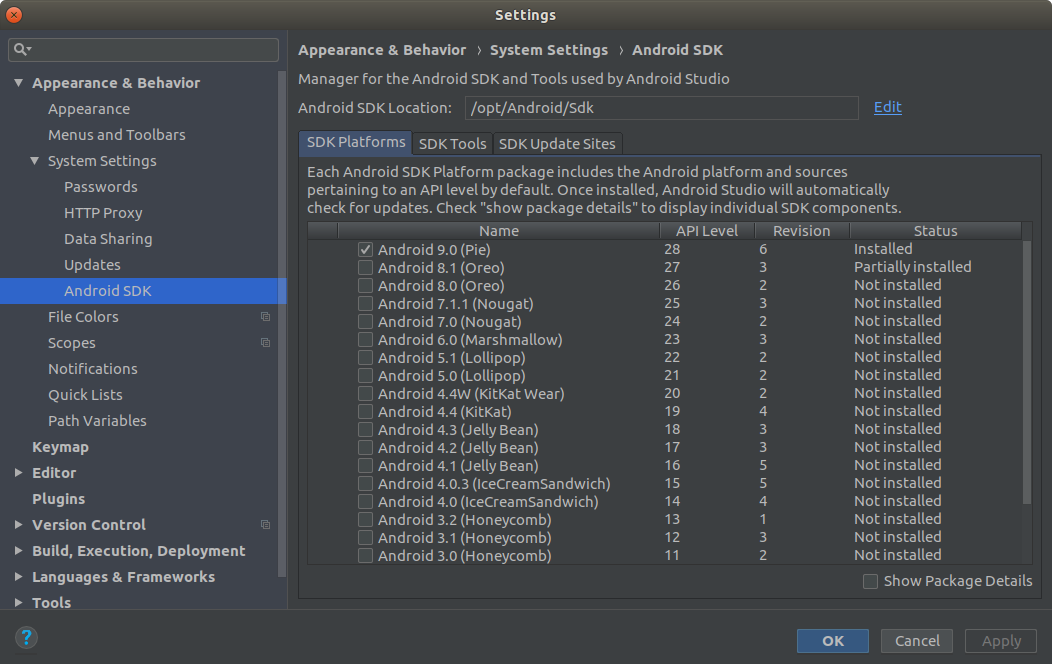
3. Link the SDK location from inside Android Studio

Open the Android Studio from dash (start typing android and it should pop up along with the Android Studio icon)

File -> Settings -> System Settings -> Android SDK

Set the path to the Android SDK location

If we have moved the Project directory then we will need to open one project manually and Android Studio will automatically detect the new location of the projects.

Notice that Android Studio with all its packages takes upwards of 9 GB

$ cd /opt/Android/
$ du -sh
8.8G .


Importing data from the clipboard in R

Importing data from the clipboard

Copy the data from Google Sheets or Excel and import the data from the clipboard using the function

> x1 = read.table(file="data-share", sep = "\t", 
+ na.strings = "NA", header = T)
> importeddata = read.excel()


This function assumes the header row is copied by default. However, this import function does not seem to work all the time. Sometimes it works fine but then it will give errors like

> importeddata = read.excel()
Warning message:
In read.table("clipboard", sep = "\t", header = header) :
incomplete final line found by readTableHeader on 'clipboard'
> importeddata = read.excel()
Error in read.table("clipboard", sep = "\t", header = header) : 
 first five rows are empty: giving up
In addition: Warning message:
In read.table("clipboard", sep = "\t", header = header) :


So I gave up using it and use a workaround. I copy and paste the data in a text editor (Gedit) and save that data as plain text as a file called data-share. Then import that file using the read.table() function.

Importing data into R using read.table()

read.table() is a versatile function which can import any table

> importedata = read.table(file="data-share", sep = "\t", 
+ na.strings = "NA", header = T)
> importedata
  x1 y1 x2 y2
1   2 2  6 5
2   2 5  7 4
3   6 5  8 7
4   7 3  5 6
5   4 7  5 4
6   6 4 NA NA
7   5 3 NA NA
8   4 6 NA NA
9   2 5 NA NA
10  1 3 NA NA

 
We can extract individual columns using the array notation

> importedata[1]
  x1
1   2
2   2
3   6
4   7
5   4
6   6
7   5
8   4
9   2
10  1
> importedata[3]
  x2
1   6
2   7
3   8
4   5
5   5
6  NA
7  NA
8  NA
9  NA
10 NA

 
However, we cannot find the means of individual columns just by applying the mean() function on these lists.

> mean(importedata[1])
[1] NA
Warning message:
In mean.default(importedata[1]) : argument is not numeric or logical: returning NA

 
The reason is that any extracted column is also a list.  importedata and all of its extracted parts contain a header and are therefore considered “list” objects. The easiest solution is to apply the mean() function to each column using the sapply() function. This function acts just like the map() function of Python.

> sapply(importedata, mean, na.rm=T)
x1  y1 x2  y2 
3.9 4.3 6.2 5.2

 
Usage: sapply(data, function, arguments to function)

We needed to use the argument na.rm=TRUE for the function mean() otherwise it will return NA for the last two rows which contain many NA values. The last two columns have less data than the first two. They contain NA values for the rows which are missing data so the last two columns would evaluate to NA if the arg na.rm=T is not used.

> sapply(importedata,mean)
x1  y1 x2  y2 
3.9 4.3  NA NA

 
The alternative to using sapply() would be to extract each column, convert using unlist() function, assign the result to a vector and then find the mean of that vector.

> data1 = unlist(importedata[1], use.names = F)
> mean(data1)
[1] 3.9

 
The first row strips the header, flattens the columns and returns a vector of numbers. The second row finds the mean.

Swap columns of CSV file from Linux terminal

Swapping columns is an integral part of data analysis. And with GUI spreadsheet programs it is simply a four-step process. Suppose ColumnA and ColumnB need to be swapped. Then the following sequence does the job.

  1. Create a new column before ColumnA
  2. Cut ColumnB into this new column
  3. Cut ColumnA to the location of ColumnB
  4. Delete empty column

However, for massive databases, the spreadsheet program is neither adequate nor recommended. The software will take a long time to load the file, maybe even stall in the process of loading the large database. A simpler solution will be to use AWK to swap the columns of the database. This method is extremely fast and efficient. A typical AWK command to rearrange the columns of a database will look like

awk -F ',' 'BEGIN{OFS=",";} {print $1, $5, $3, $4, $2}' test.csv

This command rearranges column 2 with column 8. This command is simple and elegant. But it has its drawbacks. The user needs to type all the column numbers by hand, which will become inefficient as the number of columns increases. A huge database might have more than 50 columns. It is very inefficient to type all column numbers by hand. Another disadvantage of manual entry is that the possibility of error is high while ordering the columns. The solution will be writing a shell script which achieves the same result with an AWK command but is more user-friendly.

#!/bin/bash
# swapcolumns v2.1 - this script swaps two columns of a csv file
# Usage: ./swapcolumns [inputfilename.csv] [outputfilename.csv] [delimiter]

# Input file test
if [ -z $1 ]; then
echo "Input filename absent"
read -p 'Enter input filename: ' inputfilename
else
inputfilename=$1
fi 
# check if file exists
if [ ! -f $inputfilename ]; then
echo "File" $inputfilename "does not exist. Exiting."
exit
fi

# Output file test
if [ -z $2 ]; then
echo "Output filename absent"
read -p 'Enter output filename: ' outputfilename
else
outputfilename=$2
fi
# check if file exists
if [ ! -f $inputfilename ]; then
echo "File " $inputfilename " does not exist. Exiting."
exit
fi

detecteddelimiter=`head -n1 $inputfilename | tr -d '[a-z][A-Z][0-9]' | sed 's/.\{1\}/&\n/g' | sort -r | uniq -c | sort -nr | tr -s " " | cut -d" " -f3 | head -n1`
# Find column delimiter
if [ -z $3 ]; then
echo "Delimiter detected: " $detecteddelimiter
read -p 'Press enter to accept this as the delimiter or enter one: ' delimiter
if [ -z $delimiter ];then
delimiter=$detecteddelimiter
fi
else
delimiter=$3
fi

head $inputfilename -n1 | tr $delimiter '\n' | nl
echo

read -p 'Enter column 1: ' col1
read -p 'Enter column 2: ' col2

columnlength=`head $inputfilename -n1 | tr ',' '\n' | wc -l`

awkstr=""

for i in `seq 1 $columnlength`;
do
 if (( $i == $columnlength )); then
 if (( $i == $col1 )); then
awkstr=$awkstr" $"$col2
elif (( $i == $col2 )); then
awkstr=$awkstr" $"$col1
else
awkstr=$awkstr" $"$i
fi
 else
 if (( $i == $col1 )); then
awkstr=$awkstr" $"$col2","
elif (( $i == $col2 )); then
awkstr=$awkstr" $"$col1","
else
awkstr=$awkstr" $"$i","
fi
 fi
done

# '"$variable"' - the double quotes expands the variable to its value while 
# single quotes allows AWK to interpreting it as an argument to print
# "'"$delimiter"'" requires an extra "" around it so that it is interpreted 
# as OFS="," and not as OFS=,

awk -F ${delimiter} 'BEGIN{OFS = "'"$delimiter"'" ;} {print '"$awkstr"' }' $inputfilename > $outputfilename
echo "Output written to" $outputfilename

After the usual checks for missing filenames, the script extracts the column headers using head (which outputs the first part of files) and replaces the column delimiter with a newline using tr.  This produces a list of column headers. An nl command numbers the lines and makes it easier for the user to choose the columns. It then reads the input stream for column numbers using the read command. Once the user input is loaded, the script uses a similar one-liner to extract the number of columns and runs through a loop which generates a string of column numbers in the order specified by the user (and stores in the variable awkstr). It checks for the special case when one of the swapped columns is the last column of the database and avoids appending a separating character (comma) for that case.

The AWK command needs some explanation. The ‘”$awkstr”‘ variable, which holds the string meant to generate the reordering of the columns, needs to be expanded inside the AWK command and at the same time interpreted as an argument to print. Double quotes around a bash variable expands its value while single quotes allow string literal interpretation by the print command of AWK. The quotes around the variable for the delimiter work in the same manner except there needs to be an extra double quote around it so that it is interpreted as OFS=”,” and not as OFS=, (absence of quotes generates AWK error).

To implement this code, let’s say we want to rearrange the columns 1 and 2 on a test file displayed below. The test CSV file has three columns – Test, NumA, and NumB.

$ cat test.csv 
Test,NumA,NumB
A,2,9
B,2,9
C,6,17
D,1,7
E,3,11
F,3,11
G,6,17
H,5,15

When the script is run on this test data, the script automatically detects the delimiter and displays a numbered list of the columns. It then asks the user to choose the column numbers which needs to be swapped. We have appended the output of the script stored in the file out.csv.

$ ./swapcolumns.sh test.csv out.csv 
Delimiter detected: ,
Press enter to accept this as the delimiter or enter one: 
1 Test
2 NumA
3 NumB

Enter col1: 1
Enter col2: 2

$ cat out.csv 
NumA,Test,NumB
2,A,9
2,B,9
6,C,17
1,D,7
3,E,11
3,F,11
6,G,17
5,H,15

The ordering of column numbers is immaterial.

$ ./swapcolumns.sh test.csv out.csv 
Delimiter detected: ,
Press enter to accept this as the delimiter or enter one: 
1 Test
2 NumA
3 NumB

Enter col1: 2
Enter col2: 1

cat out.csv 
NumA,Test,NumB
2,A,9
2,B,9
6,C,17
1,D,7
3,E,11
3,F,11
6,G,17
5,H,15

The automatic detection of the delimiter (see variable $detecteddelimiter in the above code) is a very useful piece of code (albeit a long one) and is discussed in a subsequent post on identifying delimiter of a CSV file.

When one of the swapped columns is the last column of the database it is a special case, which is handled in the script by the first if statement inside the for loop.

$ ./swapcolumns.sh test.csv 
test.csv
1 Test
2 NumA
3 NumB

Enter col1: 2
Enter col2: 3
Test,NumB,NumA
A,9,2
B,9,2
C,17,6
D,7,1
E,11,3
F,11,3
G,17,6
H,15,5

The scripts’ error handlers handle wrong, misspelled, and non-existent filenames.

$ ./swapcolumns.sh 
Input filename absent
Enter input filename: junk.csv
File junk.csv does not exist. Exiting.

The script can be easily modified to remove columns instead of swapping them.

#!/bin/bash
# removecolumns v1.0 - this script removes columns from a csv file
# Usage: ./removecolumns [inputfilename.csv] [outputfilename.csv] [delimiter]

# Input file test
if [ -z $1 ]; then
echo "Input filename absent"
read -p 'Enter input filename: ' inputfilename
else
inputfilename=$1
fi 
# check if file exists
if [ ! -f $inputfilename ]; then
echo "File" $inputfilename "does not exist. Exiting."
exit
fi

# Output file test
if [ -z $2 ]; then
echo "Output filename absent"
read -p 'Enter output filename: ' outputfilename
else
outputfilename=$2
fi
# check if file exists
if [ ! -f $inputfilename ]; then
echo "File " $inputfilename " does not exist. Exiting."
exit
fi

detecteddelimiter=`head -n1 $inputfilename | tr -d '[a-z][A-Z][0-9]' | sed 's/.\{1\}/&\n/g' | sort -r | uniq -c | sort -nr | tr -s " " | cut -d" " -f3 | head -n1`
# Find column delimiter
if [ -z $3 ]; then
echo "Delimiter detected: " $detecteddelimiter
read -p 'Press enter to accept this as the delimiter or enter one: ' delimiter
if [ -z $delimiter ];then
delimiter=$detecteddelimiter
fi
else
delimiter=$3
fi

head $inputfilename -n1 | tr $delimiter '\n' | nl
echo

read -p 'Enter column to be removed: ' col1

columnlength=`head $inputfilename -n1 | tr ',' '\n' | wc -l`

awkstr=""

for i in `seq 1 $columnlength`;
do
 if (( $i == $columnlength )); then
 if (( $i != $col1 )); then
awkstr=$awkstr" $"$i
fi
 else
 if (( $i != $col1 )); then
awkstr=$awkstr" $"$i","
fi
 fi
done

# '"$variable"' - the double quotes expands the variable to its value while 
# single quotes allows AWK to interpreting it as an argument to print
# "'"$delimiter"'" requires an extra "" around it so that it is interpreted 
# as OFS="," and not as OFS=,

awk -F ${delimiter} 'BEGIN{OFS = "'"$delimiter"'" ;} {print '"$awkstr"' }' $inputfilename > $outputfilename
echo "Output written to" $outputfilename


List files with absolute pathname in Linux

ls -d $PWD/*

$PWD/* expands the absolute path of the present working directory and appends the directory listing of * to it.

ls displays that list while -d prevents ls from going into each directory in that list and recursively listing all sub-directories.

We can also print filelist of all sub-directories relative to current directory.

find . -type f

Convert filelist to an Excel database (importable ebook list)

Let us say we have a collection of ebooks or papers/articles sorted in various folders and we want to create a database (or spreadsheet) of those papers or books so that we can add comments or notes next to them.For example, let us say we have a file structure like (find . type f)

./entanglement-entropy-holography/1006.1263.pdf

./entanglement-entropy-holography/0912.1877.pdf

./entanglement-entropy-holography/0911.3160v2.pdf

./entanglement-entropy-holography/0912.1877v2.pdf

./entanglement-entropy-holography/1010.1682.pdf

./graviton-propagator/zee-1979-PhysRevLett.42.417.pdf
./graviton-propagator/dewitt-3-PhysRev.162.1239.pdf
./graviton-propagator/dewitt-2-PhysRev.162.1195.pdf
./graviton-propagator/dewitt-1-PhysRev.160.1113.pdf
./SUSY/Piguet-9710095v1.pdf
./SUSY/Olive_susy_9911307v1.pdf
./SUSY/sohnius-introducing-susy-1985.pdf
./SUSY/khare-cooper-susy-qm-phys.rept-1995.pdf
./SUSY/Instantons Versus Supersymmetry9902018v2.pdf
and we want this list to be converted to a database format.


Article Type Notes
1006.1263.pdf entanglement-entropy-holography
0912.1877.pdf entanglement-entropy-holography
0911.3160v2.pdf entanglement-entropy-holography
0912.1877v2.pdf entanglement-entropy-holography
1010.1682.pdf entanglement-entropy-holography
zee-1979-PhysRevLett.42.417.pdf graviton-propagator
dewitt-3-PhysRev.162.1239.pdf graviton-propagator Difficult
dewitt-2-PhysRev.162.1195.pdf graviton-propagator Difficult
dewitt-1-PhysRev.160.1113.pdf graviton-propagator Difficult
Piguet-9710095v1.pdf SUSY
Olive_susy_9911307v1.pdf SUSY
sohnius-introducing-susy-1985.pdf SUSY
khare-cooper-susy-qm-phys.rept-1995.pdf SUSY
Instantons Versus Supersymmetry9902018v2.pdf SUSY Random comment
The last column is added by the user after the data is imported. In order to import the data in the above format, we need the directory name (TYPE) and the FILENAME to be reversed and printed as columns separated by TAB. We can use any other delimiter but with TAB as the delimiter of columns, a spreadsheet program will automatically split the imported columns into two columns.

$ find . -type f -print | sed -r ‘s|(.*)\/|\1+|’  | awk -F”+” ‘{print $2″\t”$1}’ | sed ‘s|\.\/||’

The find command lists all files and pipes it to sed which then replaces the last forward slash (/) with a +. This replacement allows awk to operate on this location (+) and splice the string into two – the first part is the TYPE and the second part is the FILENAME. awk then switches the order of the fields TYPE and FILENAME and puts a TAB in between the fields. Now a simple copy-paste of the output to a spreadsheet program will automatically sort the two fields into two different columns.
Detailed explanation:
find . -type f 
selects only files recursively from all sub-directories
sed -r ‘s|(.*)\/|\1+|’

-r indicates REGEX(regular expression) to be used in pattern matching

| delimiter is used instead of the conventional / to avoid confusion while replacing the / in the strings.
(.*)\/ selects everything up to the last forward slash (/) (sed is a greedy pattern matcher).

(.*) is stored in \1 is put back while the forward slash (/) is replaced by +.

awk -F”+” ‘{print $2″\t”$1}’

-F sets the input field separator to be + so that awk can splice the input string at the location of the +, which is conveniently inserted at the location of the last forward slash (/) by the previous sed operation.
‘{print $2″\t”$1}’ prints column 2, TAB, and column 1 in that order, effectively interchanging the columns and inserting a TAB between them.
The output will look like this 

$ find . -type f -print | sed -r 's|(.*)\/|\1+|'  | awk -F"+" '{print $2"\t"$1}' | sed 's|\.\/||'

1006.1263.pdf entanglement-entropy-holography 
0912.1877.pdf entanglement-entropy-holography 
0911.3160v2.pdf entanglement-entropy-holography 
0912.1877v2.pdf entanglement-entropy-holography 
1010.1682.pdf entanglement-entropy-holography 
zee-1979-PhysRevLett.42.417.pdf graviton-propagator 
dewitt-3-PhysRev.162.1239.pdf graviton-propagator Difficult
dewitt-2-PhysRev.162.1195.pdf graviton-propagator Difficult
dewitt-1-PhysRev.160.1113.pdf graviton-propagator Difficult
Piguet-9710095v1.pdf SUSY 
Olive_susy_9911307v1.pdf SUSY 
sohnius-introducing-susy-1985.pdf SUSY 
khare-cooper-susy-qm-phys.rept-1995.pdf SUSY 
Instantons Versus Supersymmetry9902018v2.pdf SUSY


Identifying delimiter of a CSV file

The following one-liner can be used to extract the delimiter of a CSV file. This command does not work on TAB separated files. It only works on delimited files whose field separators are NOT whitespaces.

$ head -n1 bookmerged.csv  | tr -d '[a-z][A-Z][0-9]' | \
tr -d '"' | sed 's/.\{1\}/&\n/g' | sort -r | uniq -c | \
sort -nr | tr -s " " | cut -d" " -f3 | head -n1

This command generates a list of special characters and from that list selects the character with the highest frequency of occurrence. This character must be the delimiter of the file unless some other special character is used heavily. This code will fail when other special characters have a higher frequency of occurrence than the delimiter. An explanation of this code is as follows.

After head grabs the column headers, the first two trace commands (tr) removes all alphabets, numbers, and quotes. This leaves a bunch of special characters among which the character with the highest frequency of occurrence is most likely the delimiters of the fields.

,,,,,   , ,, , , ,,, ,, , ,/ , , , 

The sed command introduces a newline after every character effectively putting every single character on a new line. {1} selects one character at a time, \{ escapes the character {, and & substitutes the pattern match (the single character) with pattern+newline. We can also use \0 instead of &. sort -r | uniq -c | sort -nr generates the list of characters in descending order of prevalence.

     20 ,
     14  
      1 /
      1 

The most prevalent character appears at the top of this list. tr -s ” “ combines (squeezes) the multiple spaces into one and the cut command splices up the list along the spaces and selects the third column which is the delimiter.