Changing the Linux terminal colors

If you have directory in the terminal window blending into the background, changing the color scheme of the terminal will not help.

Try this instead.

Add the following line to .bashrc (and also do a source .bashrc).

LS_COLORS="di=4;36:ex=3;32"

di is for directory
ex is for executable
di="[0:no effect, 1: bold, 3: italic, 4=underline, 5=blinking];[fg color]"

Experiment with the foreground color [fg]. 32=green, 34=blue etc.

If anyone has any other Linux terminal tips, add in the comments below.

Add columns of a CSV file with a single line of bash commands

Analysing and extracting results from data stored in CSV files is made simple with spreadsheet programs which can easily import them and support a wide variety of formats. For example the exported data from my HSA contribution file.

12/01/201911/30/2019InterestNone$0.09
11/12/201911/12/2019CIGNA HEALTHCARE 68Debit Card-$25.00
11/04/201911/04/2019Fee DistributionEFT-$1.75
11/01/201910/31/2019InterestNone$0.09
10/02/201910/02/2019Fee DistributionEFT-$1.75
10/01/201909/30/2019InterestNone$0.09
09/04/201909/04/2019Fee DistributionEFT-$1.75
09/01/201908/31/2019InterestNone$0.09
08/03/201908/02/2019Fee DistributionEFT-$1.75
08/01/201907/31/2019InterestNone$0.09
07/05/201907/05/2019CIGNA HEALTHCARE OF ARDebit Card-$25.00
07/02/201907/02/2019Fee DistributionEFT-$1.75
07/01/201906/30/2019InterestNone$0.09
06/04/201906/04/2019Fee DistributionEFT-$1.75
06/03/201906/03/2019CIGNA HEALTHCARE OF ARDebit Card-$25.00
06/01/201905/31/2019InterestNone$0.09
05/31/201905/31/2019CVS/PHARMACY #07078Debit Card-$15.00
05/13/201905/13/2019CIGNA HLTHCRE AZ#HCFSDebit Card-$65.80
05/02/201905/02/2019Fee DistributionEFT-$1.75
05/01/201904/30/2019InterestNone$0.09
04/02/201904/02/2019Fee DistributionEFT-$1.75
04/01/201903/31/2019InterestNone$0.10
03/21/201903/21/2019Adjustment ContributionEFT$1.75
03/04/201903/04/2019Fee DistributionEFT-$1.75
03/01/201902/28/2019InterestNone$0.18
02/25/201902/25/2019CVS/PHARMACY #07078Debit Card-$15.00
HSA contribution CSV file called hsa.csv

To get the 2019 activity only in a spreadsheet program we will need to set up filters and filter out all other years except 2019. That is a lot of mouse events. In command-line we can use just use a single command – grep

Filter for specific column values and then adding a separate column

Now, let’s say we want to find what is the total expenditure in PHARMACY. In spreadsheet we have to filter again by PHARMACY and then sum those columns. While this is not too difficult there can be issues with autosum summing hidden rows too, leading to erroneous results. IN command-line we simply do grep again.

$ cat hsa.csv | grep 2019 | grep PHARMACY 

To sum the last column involves extracting that column. A single column or a list of columns can be extracted using the cut command. The -d switch defines the delimiter (separator of fields), which in the case of CSV files in the comma “,”. So the cut command cuts up the file vertically along the delimiter. -f lists the columns to be extracted – as a single number for a single column or as a list 2-5, to extract columns 2 to 5 (for more info see the man page of cut).

$ cat hsa.csv | grep 2019 | grep PHARMACY | cut -d"," -f5 

And then we extract the numbers in that column only. While the numbers can be extracted in a variety of ways including sed and awk (which many people prefer) I will use tr (translate) command. tr (translate) command primarily is use to replace characters but it can also remove characters.

$  cat hsa.csv | grep 2019 | grep PHARMACY | \
> cut -d"," -f5 | tr -cd '[:digit:].\n'
15.00
15.00
15.00

tr -c chooses the complement of :digits: (0-9), period (.), and newline (\n) i.e. everything else except real numbers and newline. -d deletes those characters.

Now just have to sum those numbers.

$  cat hsa.csv | grep 2019 | grep PHARMACY | \ 
> cut -d"," -f5 | tr -cd '[:digit:].\n' | paste -sd+ | bc
45.00

paste accepts each line as input and joins them using the separator + which then is fed onto the terminal calculator bc which then performs the addition.

Now, this is good for learning. If we do not feel like going through the steps over and over again I have written a script which auto detects the column that needs to be summed and sums that column based on a given filter. The script below can be downloaded from my GitHub page.

#!/bin/bash
# sumcolumn.sh v1.5 by Saugata copyright 07/07/2020
# autosum price column of a csv after filtering for a specific column value

usage="
Usage: ./sumcolumn.sh [filename] [pattern] [-h help]
  
Example: ./sumcolumn.sh hsa.csv PHARMACY
"

# ---- GETOPTS ----
# no args. print usage and exit
if [[ $# -eq 0 ]]; then
 echo "$usage"
 exit
fi

while getopts h option
do
case "${option}"  in
 h) echo "$usage" 
 exit ;;
esac
done

# check if first arg is a file which exists
if [[ -z $1 ]]; then
  echo "File doesn't exist"
  exit
fi
echo "Filename: " $1

# check if file is a text file
txtfile=`file "$1" | grep "text"`

if [[ $txtfile == "" ]]; then
  echo "File not a text file. Choose a text file."
  exit
fi

# check if pattern exists in file
ptn=`grep "$2" "$1"`
if [[ $ptn == "" ]]; then
  echo "Pattern does not exist in file. No sum."
  exit
fi

# identify column containing price (elements have $ symbol)
sumcol="$(head -n 2 "$1" | tail -n 1 | tr "," "\n" | nl \
 | grep "\\$" | sed 's/ //g' | head -c1 )"

if [[ $sumcol == "" ]]; then
  echo "No columns to sum"
  exit
fi

echo "Summing column: " `head -n 1 "$1" | cut -d"," -f$sumcol`

echo "Total: " total="$(grep "$2" "$1" | cut -d"," -f$sumcol \
 | tr -cd '[:digit:].\n' | paste -sd+ | bc)"

Simple script to join files using ffmpeg

A simple script to join files using ffmpeg. This script works in Linux only.

Save the following code as a script file. For example, save as joinvideos.sh and set the executable permission with chmod 755 joinvideos.sh. Then copy all videos that need to be joined in a single folder containing the script. The script will join any video files it finds in the folder. The script will also join the video files in the alphabetical order of their names. So it is important to rename the files as f1.mp4, f2.mp4, f3.mp4 if the original filenames have no naming order.

#!/bin/bash
# joinvideos.sh v1.5 by Saugata
# join multiple video files with ffmpeg 

# remove temp files if they exist from interrupted past run
if ls temp-*.mp4 1> /dev/null 2>&1; then
  echo "Removing older temp*.mp4 files"
  rm temp-*.mp4
fi

# make a list of all mp4 files in the diretory 
# except the output.mp4 if it exists
listofvidfiles=`ls -1 | grep mp4 | grep -v "output"`

for f in $listofvidfiles;
do
  # check for location of Video stream
  # if Video is at Stream #0:1 then swap to Stream #0:0
  # save file as temp file
  vidstreamno=`ffprobe $f 2>&1 | grep Video | cut -d":" -f2 | cut -d"(" -f1`
  if [ "$vidstreamno" -eq "1" ]; then
    ffmpeg -i $f -map 0:1 -map 0:0 -c copy temp-$f
  else
    cp $f temp-$f
  fi
  # if Video is at Stream #0:0 then copy it to a temp file
  echo $f: "Video stream at" $vidstreamno
done

# create a text files from list of temp-*.mp4 for ffmpeg input
ls -1 *.mp4 | grep mp4 | grep temp | sed "s/^/file '/" | sed "s/$/\'/" > vidfilelist.txt 
echo "-----------------------------"
echo "Joining files ..............."
cat vidfilelist.txt 
echo "-----------------------------"

# use ffmpeg to join mp4 files
ffmpeg -f concat -safe 0 -i vidfilelist.txt -c copy output.mp4

# clean temp files before exit
if ls temp-*.mp4 1> /dev/null 2>&1; then
  echo "Removing temp*.mp4 files"
  rm temp-*.mp4
fi


Getting error: Non-monotonous DTS while concatenating video files in ffmpeg

ffmpeg is a versatile tool which can concat multiple videos into a single video with minimal processing load. ffmpeg takes a text file with a list of video files to be joined in the order they are to be concatenated. A sample command will look like this.

ffmpeg -f concat -safe 0 -i mylist.txt -c copy output.mp4

This command can be used universally as long as mylist.txt file contains the correct list of video files that are to be joined. The text file might look like this.

# this is a comment
file 'f1.mp4'
file 'f2.mp4'

I was joining pieces of lecture videos recently using ffmpeg and it was working perfectly till it broke. I started getting the error “Non-monotonous DTS in output stream”.

[mp4 @ 0x559118faf340] Non-monotonous DTS in output stream 0:1; previous: 10392576, current: 9748800; changing to 10392577. This may result in incorrect timestamps in the output file.

The issue seemed to be due to the video file itself. The online forums discussed something about the timestamp which didn’t make sense. I checked the encoding and bitrates and all seemed to be in order except the video and the audios steams are switched in the second video. While f1.mp4 contains the audio stream at Steam #0:0, f2.mp4 contains the audio stream at Steam #0:1.

Screenshot from 2020-05-07 00-44-29

To correct this we used the map function of ffmpeg to swap the audio and the video streams.

$ ffmpeg -i f2.mp4 -map 0:1 -map 0:0 -c copy  new.mp4


And the ffmpeg -f concat started working again!!

References:
[1] https://trac.ffmpeg.org/wiki/Map

A simple script to search inside text files

Many times we know that we wrote some code snippet which we want to reuse but cannot remember which file it is in. We need to search inside those python files to get to that code snippet. The following script is devised to make that search easier. It goes into every subdirectory and searches every text file for the string. To get the usage just run the script without any arguments.

#!/bin/bash
# search inside text files : v4.1 by Saugata 

usage="
Usage: ./searchinsidefiles.sh [-s word to search] 
                              [-t file types to search]
                              [-v verbose]
                              [-h help]
  
Example: ./searchinsidefiles.sh -s DataFrame -t py
Example: ./searchinsidefiles.sh DataFrame py
"
# ---- SET INITIAL VALUES ----
word=""
file_ext="*"
verbose=0
# ---- GETOPTS ----
# no args. print usage and exit
if [[ $# -eq 0 ]]; then
 echo "$usage"
 exit
fi

# if $1 doesn't start with a switch - then user have used 
# the other way of passing args
if [[ "$1" =~ ^[a-zA-Z0-9]+$ ]]; then  
 # ---- SET INITIAL VALUES ----
 word=$1
 file_ext=$2

 # Second argument might be empty 
 # which means $file_ext 
 # will be empty at this point too
 #Set the values of $num and $special 
 #to the default values in case they are empty
 [ "$2" == "" ] && file_ext="*"

else
 # user have used a switch to pass args. Use getopts
 while getopts s:t:vh option
 do
  case "${option}"  in
   s) word=${OPTARG};;
   t) file_ext=${OPTARG};;
   v) verbose=1;;
   h) echo "$usage" 
   exit ;;
  esac
 done
fi

# -----------------------

echo
echo "Pattern to search for: " $word
echo "Files being searched: " $file_ext
echo

IFS=$'\n'
filenames=`find . -type f -name "*.$file_ext"` 
for i in $filenames
do
istextfile=`file $i | grep "text"`

if [ "$istextfile" ]; then
 text=`cat $i | grep "$word"`
 if [ "$text" ] ; then 
  echo "-------------------------------------" 
  echo "FILE : " $i 
  if [ "$verbose" -eq "1" ] ; then
   echo
   grep $word $i -A2 -B2 --color=auto
   echo
  fi
 fi
fi
done

A python GUI is going to follow.

Jupyter notebook running the wrong python version

When multiple versions of python are installed in a system along with anaconda3, jupyter kernels might run the wrong python version. Here is an example.

jupyter1.png

When we start the Python 2 kernel explicitly from the drop-down menu, we expect Jupyter to be running Python 2. But that is not the case as verified below.

jupyter2.png

The culprit is the kernel.json file in the jupyter kernel folder at /usr/share/jupyter/kernels/python2.

jupyter3.png

The kernel.json file asks jupyter to run /usr/bin/python. But /usr/bin/python points to python3 and not python2. Therefore, jupyter ends up running python 3 . We will need to replace python with python2 in the kernel.json file (/usr/share/jupyter/kernels/python2).

{
"argv": [
"/usr/bin/python2", 
"-m", 
"ipykernel_launcher", 
"-f", 
"{connection_file}"
], 
"display_name": "Python 2", 
"language": "python"
}

Save the file and restart jupyter.

I had to repeat a similar procedure with the Sagemath Jupyter kernel. /usr/share/jupyter/kernels/sagemath had the following kernel declaration for jupyter that was causing the kernel to crash.

{
"display_name": "SageMath 8.1", 
"argv": [
 "/usr/bin/sage",
 "--python",
 "-m",
 "sage.repl.ipython_kernel",
 "-f",
 "{connection_file}"
]
}

When the python was replaced with python2 it started working.

{
"display_name": "SageMath 8.1", 
"argv": [
 "/usr/bin/sage",
 "--python2",
 "-m",
 "sage.repl.ipython_kernel",
 "-f",
 "{connection_file}"
]
}

For Sagemath installed from source this will never happen. However, if Sagemath was installed from the repositories (sudo apt install sagemath sagemath-common) then this error is inevitable due to the dependency of sagemath python 2 (see my article https://bytesofcomputerwisdom.home.blog/2019/03/23/sagemathwont-run-no-module-named-sage-repl/).

Sagemath won’t run in Linux (No module named ‘sage.repl’)

TLDR: Change #!/usr/bin/env python to #!/usr/bin/env python2 in the file /usr/share/sagemath/bin/sage-ipython

This error happens because the Python environment where Sage is running is set up to use a Python version other than Python 2.7.

If sagemath is installed using the Ubuntu repository (sudo apt-get sagemath) then it will install sagemath under python2.7. We can verify this from the Ubuntu repo

https://packages.ubuntu.com/bionic/amd64/sagemath/filelist

Or if we have already installed sagemath, by going to /usr/lib/python2.7/dist-packages/sage. So trying to run sage from a terminal will only give an error.

$ sage
Traceback (most recent call last):
File "/usr/share/sagemath/bin/sage-ipython", line 7, in
from sage.repl.interpreter import SageTerminalApp
ModuleNotFoundError: No module named 'sage.repl'

This is because sage is trying to run under a python version different than python2.7. We can verify this is the case.

$ which python
/usr/bin/python
$ ls -l /usr/bin/python
lrwxrwxrwx 1 root root 16 Mar 23 12:14 /usr/bin/python -> /usr/bin/python3

So the python environment is python3.6 and not python 2.7 (as required by sage). Sage doesn’t automatically select the right python version.

root@parton:/usr/share/sagemath/bin# cat sage-ipython 
#!/usr/bin/env python
# -*- coding: utf-8 -*-
"""
Sage IPython startup script.
"""

from sage.repl.interpreter import SageTerminalApp

app = SageTerminalApp.instance()
app.initialize()
app.start()

So sage is running ipython with the env set to find python. The env selects python which points to /usr/bin/python3.6. We can see what the current env will select.

$ type -a python
python is /usr/bin/python                   (<- python 3.6)
python is /home/jones/anaconda3/bin/python  (<- python 3.5)

For users running python3.5 with anaconda3 but having python2.7 installed system-wide, temporarily renaming anaconda3 or changing the $PATH variable to move anaconda3 to the end seems to works. I had no success with this and the reason is clear. When anaconda3 is removed from $PATH, the OS python env takes over which is python 3.6. So unless the OS environment is also python2.7, removing anacona3 will not solve the problem of sagemath not running.

There are two options available.

  1. Create a new virtual environment with vitrualenv and install python2.7 and sagemath in that environment. This will turn out to be too much work and takes up lot of space.
  2. Modify the sage-ipython file to use python2.7

We will modify /usr/share/sagemath/bin/sage-ipython

$ su
$ cd /usr/bin/
$ ls -l python*

Check the python link that points python2.7

lrwxrwxrwx 1 root root 9 Apr 16 2018 python2 -> python2.7

If there is none pointing to python2.7 then create a link

$ ln -s /usr/bin/python2.7 python2

Now let’s modify the sage-ipython file

$ cd /usr/share/sagemath/bin
$ gedit sage-ipython

Change #!/usr/bin/env python to #!/usr/bin/env python2

Save, log out of root, and run sage as a normal user. Sage should work now.

Sagemath jupyter server is crashing

Sagemath Jupyter GUI server crash is fixed by editing
/usr/share/jupyter/kernels/sagemath/kernel.json. See the post Jupyter notebook running the wrong python version.

/usr/share/jupyter/kernels/sagemath had the following kernel declaration for jupyter that was causing the kernel to crash.

{
"display_name": "SageMath 8.1", 
"argv": [
 "/usr/bin/sage",
 "--python",
 "-m",
 "sage.repl.ipython_kernel",
 "-f",
 "{connection_file}"
]
}

When the python was replaced with python2 it started working.

{
"display_name": "SageMath 8.1", 
"argv": [
 "/usr/bin/sage",
 "--python2",
 "-m",
 "sage.repl.ipython_kernel",
 "-f",
 "{connection_file}"
]
}

For Sagemath installed from source this will never happen. However, if Sagemath was installed from the repositories (sudo apt install sagemath sagemath-common) then this error is inevitable due to the dependency of sagemath python 2.

Moving Android Studio from home to system folders

Android Studio takes up a lot of space with its SDKs and virtual devices. The home folder gets full quickly. One option would be to move the entire Android Studio suite to its own folder in one of the system folders. We will use /opt folder but /usr/local can also be used.  First, we create the directory structure at /opt/

$ su
$ cd /opt
$ mkdir Android

The /opt/Android folder will hold the Android Studio, the SDKs, and the AVDs.

$ mv /home/me/android-studio /opt/Android
$ mv /home/me/Sdk /opt/Android

The AVD folders are trickier as they are in the hidden folders in the users’ home directory.

$ cd /home/me/.android
$ mv avd /opt/Android

Now we need to link the moved folders so that Android Studio can access them.

1. Link the AVD folder as normal user

Open another terminal as the regular user

$ cd ~/.android
$ ln -s /opt/Android/avd avd

We then verify that the link points to the right directory

$ ls -l
lrwxrwxrwx 1 me mygroup 16 Oct 13 09:46 avd -> /opt/Android/avd/

2. Create a desktop file for Android Studio

This will allow the user to start Android Studio from the Ubuntu dash. Open terminal as a regular user and create a new file called android-studio.desktop

$ cd ~/.local/share/applications
$ gedit android-studio.desktop

We add these values to the file and save it.

[Desktop Entry]
Name=Android Studio
Exec=/opt/Android/android-studio/bin/studio.sh
Icon=/opt/Android/android-studio/bin/studio.png
Terminal=false
Type=Application
Categories=Utility;Application;

3. Link the SDK location from inside Android Studio

Open the Android Studio from dash (start typing android and it should pop up along with the Android Studio icon)

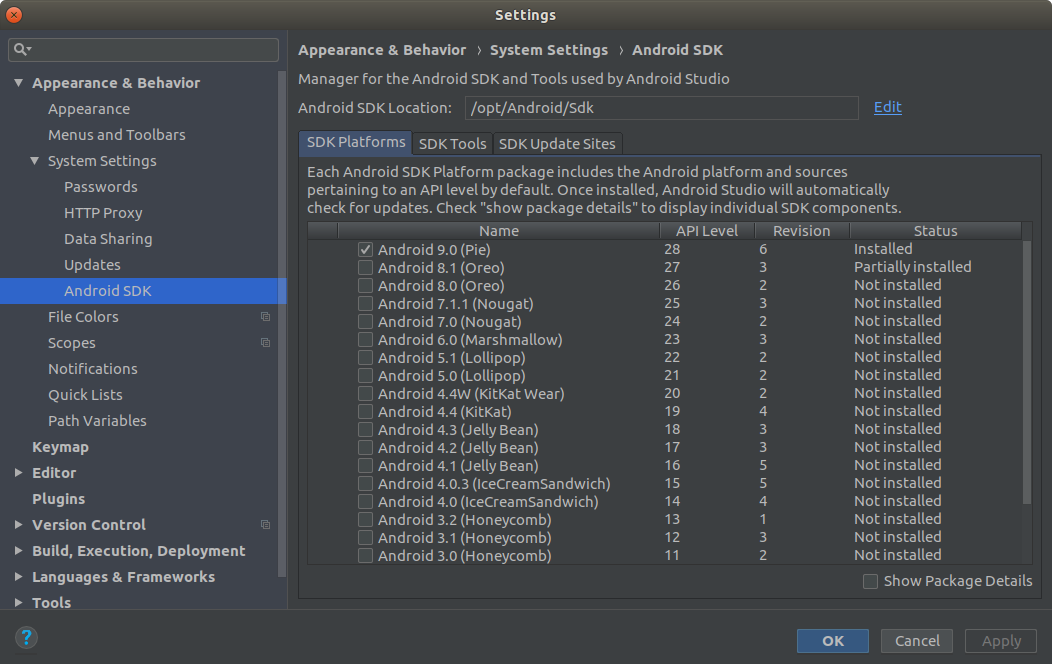
File -> Settings -> System Settings -> Android SDK

Set the path to the Android SDK location

If we have moved the Project directory then we will need to open one project manually and Android Studio will automatically detect the new location of the projects.

Notice that Android Studio with all its packages takes upwards of 9 GB

$ cd /opt/Android/
$ du -sh
8.8G .


Swap columns of CSV file from Linux terminal

Swapping columns is an integral part of data analysis. And with GUI spreadsheet programs it is simply a four-step process. Suppose ColumnA and ColumnB need to be swapped. Then the following sequence does the job.

  1. Create a new column before ColumnA
  2. Cut ColumnB into this new column
  3. Cut ColumnA to the location of ColumnB
  4. Delete empty column

However, for massive databases, the spreadsheet program is neither adequate nor recommended. The software will take a long time to load the file, maybe even stall in the process of loading the large database. A simpler solution will be to use AWK to swap the columns of the database. This method is extremely fast and efficient. A typical AWK command to rearrange the columns of a database will look like

awk -F ',' 'BEGIN{OFS=",";} {print $1, $5, $3, $4, $2}' test.csv

This command rearranges column 2 with column 8. This command is simple and elegant. But it has its drawbacks. The user needs to type all the column numbers by hand, which will become inefficient as the number of columns increases. A huge database might have more than 50 columns. It is very inefficient to type all column numbers by hand. Another disadvantage of manual entry is that the possibility of error is high while ordering the columns. The solution will be writing a shell script which achieves the same result with an AWK command but is more user-friendly.

#!/bin/bash
# swapcolumns v2.1 - this script swaps two columns of a csv file
# Usage: ./swapcolumns [inputfilename.csv] [outputfilename.csv] [delimiter]

# Input file test
if [ -z $1 ]; then
echo "Input filename absent"
read -p 'Enter input filename: ' inputfilename
else
inputfilename=$1
fi 
# check if file exists
if [ ! -f $inputfilename ]; then
echo "File" $inputfilename "does not exist. Exiting."
exit
fi

# Output file test
if [ -z $2 ]; then
echo "Output filename absent"
read -p 'Enter output filename: ' outputfilename
else
outputfilename=$2
fi
# check if file exists
if [ ! -f $inputfilename ]; then
echo "File " $inputfilename " does not exist. Exiting."
exit
fi

detecteddelimiter=`head -n1 $inputfilename | tr -d '[a-z][A-Z][0-9]' | sed 's/.\{1\}/&\n/g' | sort -r | uniq -c | sort -nr | tr -s " " | cut -d" " -f3 | head -n1`
# Find column delimiter
if [ -z $3 ]; then
echo "Delimiter detected: " $detecteddelimiter
read -p 'Press enter to accept this as the delimiter or enter one: ' delimiter
if [ -z $delimiter ];then
delimiter=$detecteddelimiter
fi
else
delimiter=$3
fi

head $inputfilename -n1 | tr $delimiter '\n' | nl
echo

read -p 'Enter column 1: ' col1
read -p 'Enter column 2: ' col2

columnlength=`head $inputfilename -n1 | tr ',' '\n' | wc -l`

awkstr=""

for i in `seq 1 $columnlength`;
do
 if (( $i == $columnlength )); then
 if (( $i == $col1 )); then
awkstr=$awkstr" $"$col2
elif (( $i == $col2 )); then
awkstr=$awkstr" $"$col1
else
awkstr=$awkstr" $"$i
fi
 else
 if (( $i == $col1 )); then
awkstr=$awkstr" $"$col2","
elif (( $i == $col2 )); then
awkstr=$awkstr" $"$col1","
else
awkstr=$awkstr" $"$i","
fi
 fi
done

# '"$variable"' - the double quotes expands the variable to its value while 
# single quotes allows AWK to interpreting it as an argument to print
# "'"$delimiter"'" requires an extra "" around it so that it is interpreted 
# as OFS="," and not as OFS=,

awk -F ${delimiter} 'BEGIN{OFS = "'"$delimiter"'" ;} {print '"$awkstr"' }' $inputfilename > $outputfilename
echo "Output written to" $outputfilename

After the usual checks for missing filenames, the script extracts the column headers using head (which outputs the first part of files) and replaces the column delimiter with a newline using tr.  This produces a list of column headers. An nl command numbers the lines and makes it easier for the user to choose the columns. It then reads the input stream for column numbers using the read command. Once the user input is loaded, the script uses a similar one-liner to extract the number of columns and runs through a loop which generates a string of column numbers in the order specified by the user (and stores in the variable awkstr). It checks for the special case when one of the swapped columns is the last column of the database and avoids appending a separating character (comma) for that case.

The AWK command needs some explanation. The ‘”$awkstr”‘ variable, which holds the string meant to generate the reordering of the columns, needs to be expanded inside the AWK command and at the same time interpreted as an argument to print. Double quotes around a bash variable expands its value while single quotes allow string literal interpretation by the print command of AWK. The quotes around the variable for the delimiter work in the same manner except there needs to be an extra double quote around it so that it is interpreted as OFS=”,” and not as OFS=, (absence of quotes generates AWK error).

To implement this code, let’s say we want to rearrange the columns 1 and 2 on a test file displayed below. The test CSV file has three columns – Test, NumA, and NumB.

$ cat test.csv 
Test,NumA,NumB
A,2,9
B,2,9
C,6,17
D,1,7
E,3,11
F,3,11
G,6,17
H,5,15

When the script is run on this test data, the script automatically detects the delimiter and displays a numbered list of the columns. It then asks the user to choose the column numbers which needs to be swapped. We have appended the output of the script stored in the file out.csv.

$ ./swapcolumns.sh test.csv out.csv 
Delimiter detected: ,
Press enter to accept this as the delimiter or enter one: 
1 Test
2 NumA
3 NumB

Enter col1: 1
Enter col2: 2

$ cat out.csv 
NumA,Test,NumB
2,A,9
2,B,9
6,C,17
1,D,7
3,E,11
3,F,11
6,G,17
5,H,15

The ordering of column numbers is immaterial.

$ ./swapcolumns.sh test.csv out.csv 
Delimiter detected: ,
Press enter to accept this as the delimiter or enter one: 
1 Test
2 NumA
3 NumB

Enter col1: 2
Enter col2: 1

cat out.csv 
NumA,Test,NumB
2,A,9
2,B,9
6,C,17
1,D,7
3,E,11
3,F,11
6,G,17
5,H,15

The automatic detection of the delimiter (see variable $detecteddelimiter in the above code) is a very useful piece of code (albeit a long one) and is discussed in a subsequent post on identifying delimiter of a CSV file.

When one of the swapped columns is the last column of the database it is a special case, which is handled in the script by the first if statement inside the for loop.

$ ./swapcolumns.sh test.csv 
test.csv
1 Test
2 NumA
3 NumB

Enter col1: 2
Enter col2: 3
Test,NumB,NumA
A,9,2
B,9,2
C,17,6
D,7,1
E,11,3
F,11,3
G,17,6
H,15,5

The scripts’ error handlers handle wrong, misspelled, and non-existent filenames.

$ ./swapcolumns.sh 
Input filename absent
Enter input filename: junk.csv
File junk.csv does not exist. Exiting.

The script can be easily modified to remove columns instead of swapping them.

#!/bin/bash
# removecolumns v1.0 - this script removes columns from a csv file
# Usage: ./removecolumns [inputfilename.csv] [outputfilename.csv] [delimiter]

# Input file test
if [ -z $1 ]; then
echo "Input filename absent"
read -p 'Enter input filename: ' inputfilename
else
inputfilename=$1
fi 
# check if file exists
if [ ! -f $inputfilename ]; then
echo "File" $inputfilename "does not exist. Exiting."
exit
fi

# Output file test
if [ -z $2 ]; then
echo "Output filename absent"
read -p 'Enter output filename: ' outputfilename
else
outputfilename=$2
fi
# check if file exists
if [ ! -f $inputfilename ]; then
echo "File " $inputfilename " does not exist. Exiting."
exit
fi

detecteddelimiter=`head -n1 $inputfilename | tr -d '[a-z][A-Z][0-9]' | sed 's/.\{1\}/&\n/g' | sort -r | uniq -c | sort -nr | tr -s " " | cut -d" " -f3 | head -n1`
# Find column delimiter
if [ -z $3 ]; then
echo "Delimiter detected: " $detecteddelimiter
read -p 'Press enter to accept this as the delimiter or enter one: ' delimiter
if [ -z $delimiter ];then
delimiter=$detecteddelimiter
fi
else
delimiter=$3
fi

head $inputfilename -n1 | tr $delimiter '\n' | nl
echo

read -p 'Enter column to be removed: ' col1

columnlength=`head $inputfilename -n1 | tr ',' '\n' | wc -l`

awkstr=""

for i in `seq 1 $columnlength`;
do
 if (( $i == $columnlength )); then
 if (( $i != $col1 )); then
awkstr=$awkstr" $"$i
fi
 else
 if (( $i != $col1 )); then
awkstr=$awkstr" $"$i","
fi
 fi
done

# '"$variable"' - the double quotes expands the variable to its value while 
# single quotes allows AWK to interpreting it as an argument to print
# "'"$delimiter"'" requires an extra "" around it so that it is interpreted 
# as OFS="," and not as OFS=,

awk -F ${delimiter} 'BEGIN{OFS = "'"$delimiter"'" ;} {print '"$awkstr"' }' $inputfilename > $outputfilename
echo "Output written to" $outputfilename


List files with absolute pathname in Linux

ls -d $PWD/*

$PWD/* expands the absolute path of the present working directory and appends the directory listing of * to it.

ls displays that list while -d prevents ls from going into each directory in that list and recursively listing all sub-directories.

We can also print filelist of all sub-directories relative to current directory.

find . -type f